

Bharti Satpute – Microsoft 365 Developer at Evolvous Limited.
Working as Microsoft Power Platform Developer and SharePoint Online Developer, Bharti have considerable experience designing responsive Power Apps, working on OOB features in SharePoint Online and O365.
She has considerable experience working on SharePoint, developing Power Apps canvas application and customized list form in Power Apps, Power Automate flow for SharePoint business applications and basic SPFx solutions with jQuery for content display and PnP PowerShell scripts for bulk update activities.
In this power apps blog, we will discuss what is the Pen input control in Power Apps, what are the important Power Apps Pen input control properties and we will discuss on Power Apps signature.
We will see these below things that are related to Power Apps Pen input control as:
The user can use this control like a whiteboard, drawing signature, drawing diagrams, and writing words that can be converted to typed text.
Key properties:
Image – Output property that represents the image drawn by the end user.
Color – The color of input strokes.
Mode – The control is in Draw or Erase mode. Select mode has been deprecated.
ShowControls – When a user enables or set to true, it shows all the icons that present in the Pen input control. For example, it shows a pen icon for drawing, an eraser for erasing that you have drawn, a clear icon, a volume slider, etc.
OnSelect – Actions to perform when the user taps or clicks a control.
Here, let’s create simple SharePoint list “Information” with columns Name, Contact, Address, Sign (multiple line text). We want to store information of person along with signature in SharePoint list.

After entering some sample data our form will look like above screenshot.
Set(varSign,If(penInputData=PenInput1.Image, Substitute(
JSON(
PenInput1.Image,
IncludeBinaryDataz
),
“”””,
“”
),””));
SubmitForm(SignForm);
On form submission, record will get store to SharePoint list which is data source of the form. Here, signature drawn using pen input control in PowerApps get stored as multiline text in SharePoint list “Information”.
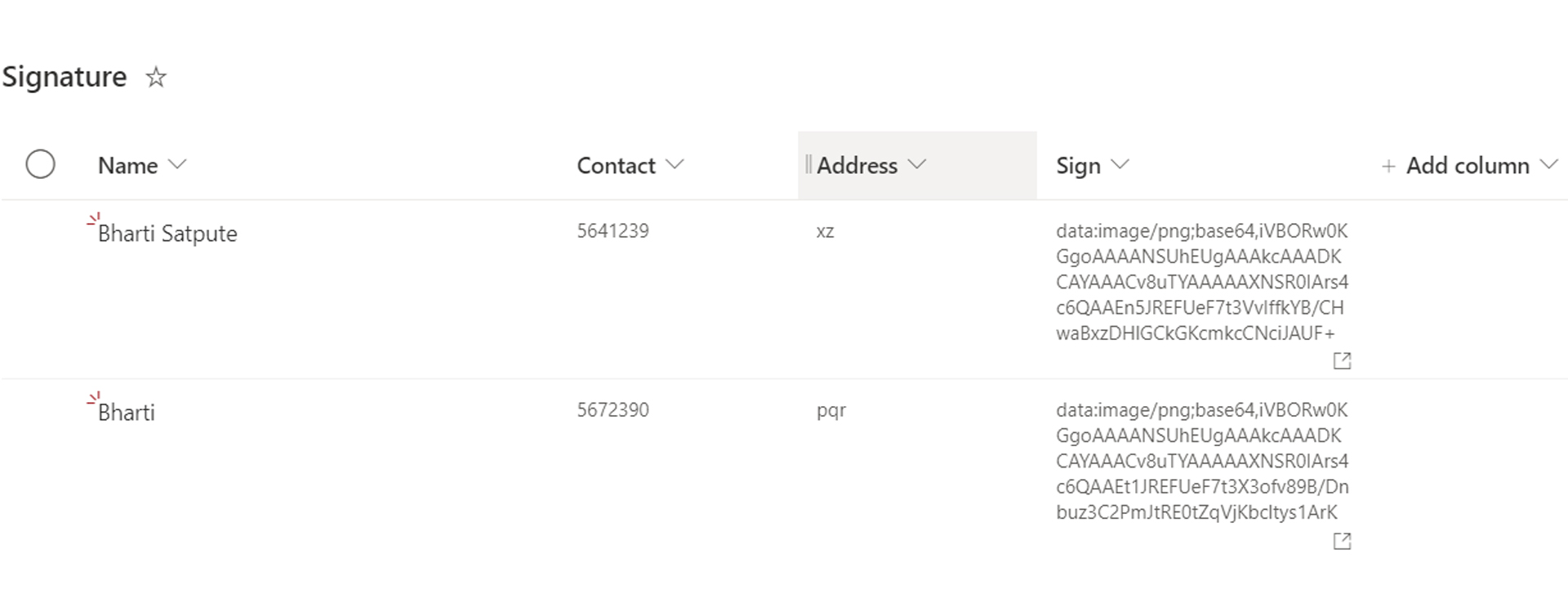
Now we want to show signature stored in SharePoint list to Power Apps again.
Follow these steps:


Onvisible of EditScreen write –
Set(isEdit,false);
If (IsBlank (LookUp (Information,ID=SelectedRecord.ID,Sign)),Set(varResizeImage,true),Set(varResizeImage,false))
Width – If (varResizeImage,0, PenInputEditSign.Width – CancelIcon.Width)
Height – If (varResizeImage,0, PenInputEditSign.Height – CancelIcon.Height)
X – PenInputEditSign.X
Y – PenInputEditSign.Y
When we click on cancel icon, image’s width-height will reduce to zero and pen input will get reset, we can draw new signature and submit form.

By using pen input control, we can draw signature in Power Apps, store that signature to SharePoint, retrieve signature from SharePoint and display it in Power Apps, update signature and can save it again.
I hope you found this blog helpful.
